English French German Spain Italian Dutch Russian Portuguese Japanese Korean Arabic Chinese Simplified
Showing posts with label Windows. Show all posts

Tuesday, 31 July 2012

Increase Broadband Speed Using Simple Tweak

A Simple Tweak (XP Pro only) which will increase your Broadband Speed.

Make sure you Log on as Administrator, not as a user with Administrator privileges.

Follow the steps as given below-

1) Click on Start Button.

2) Select Run From Start Menu. 

3) Type gpedit.msc 

4) Expand the [Administrative Templates] branch. 

5) Then Expand the [Network] branch. 

6) Highlight(Select by Single Click) [QoS Packet Scheduler] 

7) Double-click [Limit Reservable Bandwidth] (Available in Right Side Panel) 

8) Check(Select By Single Click on it) [Enabled] 

9) Change [Bandwidth limit %] to 0 % 

10) Click [OK] Button. 

11) Restart Your PC.

12) Now Check Your Broadband Speed.

Thursday, 8 March 2012

Hard Drive not Recognized/ Found/ Detected

If you install a new hard drive and install an Operating System on it and it suddenly acts like it is not there, it may be a loose connection. 

If a bootable CD, such a s Knoppix, is not able to read your hard drive, it can have several causes. The list of possibilities below can also be used for troubleshooting hard drives, floppy drives, and CD/DVD drives. 

CAUTION: Make sure the power is off and that the PC is disconnected from power. Also be sure to avoid static electricity, or you will need a new PC. Do not force any thing. All parts should easily fit together if they are properly aligned. Sometimes you may have to push or pull harder than you think. Just be careful to make sure any levers or buttons that hold it in place are not overlooked. 

* Least likely is that a new hard drive has failed. Try the other options before assuming it is the new hard drive. If all of the below do not work, and it is a new hard drive, contact the manufacturer. New hard drives should include very good instructions for installation and troubleshooting. When in doubt read the instructions.

* Open the case and make sure that all the connections are correct.

* Unplug the power supply connection, make sure there are no bent pins, and plug it in securely.

* Repeat the procedure with the connection to the motherboard, make sure no pins are bent.

* If you have multiple drives, try hooking up just one drive to make sure you can read it.

* Make sure that the power supply, and other components are working correctly. It is possible that another component of the PC has failed.

* If you have another PC available, try connecting it to the other PC. This could point to failure of the power and/or motherboard cables in the original PC.

* If none of the above works, call in professional help. You can also beg a friend or family member to help. If you cannot pay a friend or family member, a good meal, is a nice way to get them to rescue you again.

Monday, 9 January 2012

Get a Free Serial License Key for SpeedUpMyPC 2011


Here is an opportunity for you to grab 1 year license key of SpeedUpMyPC 2011. The actual cost of the software is $39.95. This offer is valid till 1st June so grab it before its too late.

SpeedUpMyPC 2011 is Gold Certified from Microsoft. It will boost your computer speed by optimizing processes, registry, settings and cleaning your computer of unnecessary and junk files.

Here are some key features of "SpeedUpMyPC 2011":

  • Free Memory - Free Up Memory (RAM)
  • Monitor Memory Usage in Real-Time
  • Automatically Optmize Memory Usage
  • CPU Usage - Optimize CPU Usage
  • Assign More Resources to Your Favorite Applications
  • Monitor CPU Usage in Real-Time
  • Internet Speed - Test Your Connection Speed
  • Optimize Your Internet and Browser Settings
  • Remove Annoying Popups While Surfing
  • Startup Speed - Automatically Log Startup Times
  • Remove Unnecessary Background Programs
  • Improve Startup Times Considerably
  • Stability - Recover from Crashes
  • Terminate Suspicious Applications
  • Use Quick Keys to Start System Recovery
  • Disk Speed - Monitor Disk Usage in Real-Time
  • Test Disk Performance
  • Show Disk Usage om Graphs for the Last Hour

To grab the 1 year license key for free follow the step below


1. Click Here to go to promotional page


2. Now Click on the Get your Free product Button


3. Enter all the details and the click on Complete Registration button


4. Now you will get your download link for the software and its license key.These details will also be emailed to for future use.

How To Activate SpeedUpMyPC 2011 with Serial key

  • Install the software that you have already downloaded from the promotional page
  • Open the software and Click on the Register Now button of the bottom left of the window
  • Copy the serial key that you got from the promotional page

SpeedUpMyPC 2011 is compatible with all versions of Windows including Windows 7

Open website without use of Browser

Today, I am going to introduse a new trick, how we can open a website without any use of browser.Yes with out any browser.HOW?

For this Internet connection must.

Method 1:

Click on the 'Start' button and click on the 'Search' option. After click the button a search window open, go to address bar and write the address of the website which you want to open and press the ENTER Key. Your site will open.

Method 2:

Open the 'My Computer' and go to address bar and write the address of site and follow the steps of Method 1.

Windows Shortcut Keys

Here are some windoes shortcut keys
Alt + E — Opens the Edit menu
Alt + Enter — Opens the Properties window
Alt + F — Opens the File menu
Alt + F4 — Closes the current program
Alt + Print — Screen Takes a screen shot of the current window or program
Alt + Tab — Switches between the programs currently in use
CTRL+TAB — SWITCHES BETWEEN TAB IN DIALOG BOX,I.E 7
Ctrl + A — Selects all text
Ctrl + C — Copies the selected object
Ctrl + End — Jumps to the end of the current document
Ctrl + Esc — Opens the Start menu
Ctrl + F4 — Closes the current program
Ctrl + Home — Jumps to the beginning of the current document
Ctrl + Insert — Copies the selected object

Ctrl + left arrow — Moves to the left one word
Ctrl + right arrow — Moves to the right one word
Ctrl + V — Pastes the selected object
Ctrl + X — Cuts the selected object
Ctrl + the “+”key — Perfectly resizes the width of Explorer columns
End — Jumps to the end of the current line
F1 — Opens the Help menu
F2 — Renames the selected icon
F3 — Launches the Search Companion in a folder or on the
desktop

F4 — Accesses the Address Bar in a folder or window
F5 — Refreshes the contents of a folder or window
Home — Jumps to the beginning of the current line
Shift + Delete — Permanently deletes files (bypasses the Recycle Bin)
Shift + End — Highlights text from the current position to the end of
the line
Shift + F10 — Substitutes for a right-click
Shift + Home — Highlights text from the current position to the
beginning of the line
Shift + Insert — Pastes the selected object
Shift while inserting — Prevents the CD player from playing an audio CD

Shortcuts for Keyboards with a “Windows”Key (Resembling a Flag)

Windows Key + E — Opens Windows Explorer
Windows Key + F — Launches the Windows Search Companion
Windows Key + F1 — Opens the Help and Support Center
Windows Key + L — Locks down Windows
Windows Key + M — Minimizes all windows and shows the desktop
Windows Key + M + Shift — Undoes the minimize
Windows Key + Opens — the System Properties window
Pause/Break key
Windows Key + R — Opens the Run window
Windows Key + U — Launches the Utility Manager
WINDOWS KEY+U — MINIMIZES ALL WINDOWS AND GOES TO DESKTOP

Tuesday, 27 December 2011

Hide Windows Partition Without Software

I am going tell a trick by which you hide your Windows hard disk partition without any use of software.
For this trick I am use the MS DOS (Command Prompt).Microsoft make the MS DOS for Command Line Instruction.I think every person whose that use the Windows know very well about Command Prompt.
If we say about hackers,Windows registry(regedit) and MS DOS always favourite features in Windows.
So.I am again use the MS DOS for hide the Windows Drive .
1: Go to 'RUN' and type 'cmd' by which command prompt open. Type 'Diskpart' and press ENTER key like given below...
By doing it Diskpart come into Global Configuration Mode.
2: Type 'list volume' like given below...

By this you see all present partion of the Windows.
3:Type 'select volume _' in blank space you fill the partion drive alphabet which you want hide.For example i am choose the partion 'E' like given below...

You see a astrix in front of choose partion which means your selection lock.
4: Type 'remove letter _' fill the blank space with selected partion alphabet,In my case i am write 'E' like given below picture...

After press Enter Key you see message of successfully remove drive, given next command
'list volume' and it shown the hide partion like above picture.You go to MyComputer and see the hide drive.
5: For found the hide partion type 'assign letter _' in place of blank type the choose partition alphabat and press Enter Key,in my case i am write 'E' like given below...


Go to MyComputer and see again.

How to Turn Off AutoPlay Feature in Window 7

Autoplay is the feature in Windows operating systems which lets you decide what application to use when you insert a media or device (USB or CD, CD, DVD etc.) to your computer. It also lets you set a default action for certain devices or medias.

It is good feature of Win7 but some time it come with problem.A virus with 'autorun' in the pen drive is too harmfull ,WHY?,when you insert a pen drive (also contain virus) then autoplay come with it when you insert the pen drive, autorun file of virus also start doing work and virus come on your system before you doing scan on the pen drive.For stop it,it is necessary to turn off the autoplay option for security purpose.For turn off the autoplay follow step given below...

  1. Click Start.
  2. In the Search field, type gpedit.msc and press Enter.
  3. The Local Policy Group Editor should appear on your screen.
  4. On the left pane go to Computer ConfigurationAdministrative TemplatesWindows Components and click AutoPlay Policies.
  5. On the right pane, click Turn Off Autoplay.
  6. Select Enabled and under Options, select where you want to turn off AutoPlay. (All drives or CD-ROM and removable media drives.)
  7. Click OK for the changes to take effect.

Sunday, 25 December 2011

Genuine your Windows for latest update

Today,i am going to tell you how to genuine your unregistered windows OS,by which you found the latest update from Microsoft and enhance the security and other features of the Windows.
This work for the Windows Vista and 7

For download the tool click here
Open the tool you see a window like given below...

Click on the 'Select Task' and you see the new window like given below...

Go to 'Please Select' option and choose your any brand name.
After that Click on the "Activate slic Present" and Wait after some time a new window open just choose anything.
After doing that click on 'Install information 32bit' or 'Install information 64bit' according to your operating system.
Now click 'Hazar option 2' after some time a option come for restart your computer ,then reboot your system.
Go to MyComputer property and check,your OS done genuine.

How to Improve Windows XP Shutdown Speed

Shorten the time it takes for your desktop to appear when you turn on your PC and make XP shut down faster as well


.In some cases computers running with Windows XP takes too much time to shutdown and repeatedly annoy users with pop up messages asking if you really want to quit the applications. This problem is mainly due to applications that install services that start at Windows XP boot time and then take a very long time to stop and sometimes time out when Windows is being shut down. No matter how fast your PC shuts down, it's not fast enough. This tweak reduces the time Windows-XP waits before automatically closing any running programs when you give it the command to shutdown.

How to Improve Your Computers Shutdown And Reboot Speed?

For speeding up your shutdown and reboot time in Windows XP, you need to edit some registry settings. Follow the steps as given below:

1. Go to Start then select Run

2. Type 'Regedit' and click ok


3. Find 'HKEY_CURRENT_USER\Control Panel\Desktop\'

4. Select 'WaitToKillAppTimeout'

5. Right click and select 'Modify'


6. Change the value to '1000'

7. Click 'OK'


8. Now select 'HungAppTimeout'

9. Right click and select 'Modify'


10. Change the value to '1000'

11. Click 'OK'


When you complete the above steps, you will find your Windows startup and shutdown faster than before.

Warning: Modifying the Windows registry can cause serious damage to your Windows Operating System. It is better to backup your Windows registry data before making any changes. I am not responsible for any changes you may make to your system.

Saturday, 24 December 2011

How to disable Right click on Desktop?

This tweak removes the context menu that would normally appear when the user right clicks on the desktop or in the Explorer right results.

Previously I posted a tutorial How to disable "Turn off Computer" button on start menu. In this post i want to show you how to disable the right click functionality on desktop and explorer by using a simple registry hack. The bad thing is that people can still drag files and folders and drop them everywhere but it does provide some level of protection.

Lets start:

To use this feature, you will need to be logged into your computer with administrative rights.

1. Go to Start > Run > type REGEDIT and hit enter. Navigate to:

HKEY_LOCAL_MACHINE\Software\Microsoft\Windows\CurrentVersion\Policies\Explorer


2. Here in right side panel, right click to create a new DWORD value with the name NoViewContextMenu (it is case sensitive), then assign number 1 in value data box.


Adding the registry tweak above will disable mouse right click for ALL users. If you only want to disable for the current logged in user, you should add the registry tweak to HKEY_CURRENT_USER instead of HKEY_LOCAL_MACHINE.

Thursday, 22 December 2011

How To Speed Up My Internet Connection with Google Public DNS

A guide to getting more out of your internet connection without switching.

If you are looking to increase your internet speed without any expensive software then you came to right place. I will tell you how to increase your internet speed up to 50%-60 % with few clicks. I have applied this trick to my GPRS dial-up connection and my internet connection speed increased to almost double.
Here I will show you how to get fastest speed to load your websites by the using of Google public DNS. Domain Name System (DNS) is a database system that translates a computer’s fully qualified domain name into an IP address. For example, when you type pc-tips-hacks.blogspot.com in web browser then DNS translate pc-tips-hacks.blogspot.com to computer readable number known as IP address and when computer knows about the IP location of web domain name it simply opens website in the browser.
 
Our ISP (Internet Service Provider) provide their DNS which are located at router. Sometimes DNS server of ISP is very slow then it takes so much time to find out the web address and open the website. To solve this problem you can replace your ISP’s DNS service with Google Public DNS by changing the settings of the network connection.

1) Go to Start -> Control Panel


2) Click on Network Connections in Control Panel


3) Right click on Local Area Connection and then click on Properties

4) Select Internet Protocol (TCP/IP) and then click on properties


5) Select Use the following DNS server addresses in filed Preferred DNS server type 8.8.8.8 and in Alternate DNS server type 8.8.4.4


Hope this tutorial was useful for you.

Top 10 Free RapidShare and Megaupload Premium Link Generators

Download your rapidshare files with premium features for free. Resume, pause, accelerate and download multiple rapidshare files.
Rapidshare and Megaupload are the biggest online file sharing services used by almost everyone on the Internet but what makes it annoying is the weird captchas, waiting time and downloading limits.

Using the huge list of Rapidshare Link Generators that I have compiled below, you will be able to use Rapidshare as a premium user. These sites generate premium download links which can be used without any limitations, even with a download manager. Free rapidshare premium link generator help in generating rapidshare premium links without asking for any money. So, even though you don’t have rapidshare premium account, you are able to download rapidshare files at high speed just like Rapidshare premium users. So, i have mentioned below 5 free rapidshare premium link generator sites to help you download rapidshare files at high speed. You just need to insert your URL and the generator will create a valid premium link for you; a link ready for download that can be resumed, paused, accelerated and more.
List of different Rapidshare Premium Link Generators :


1. Rapid Premium
How To Use RapidPremium:
1. Login with your username and password (if you have a personal account).
2. If not, use "public" as the username and password to login to the public account.
3. Enjoy Downloading :)
Megaupload premium link generator will generate premium link for your file and now, you can download megaupload file with high speed, can pause and resume the file download and even use a download manager for downloading file. You can download upto 30 rapidshare files using this rapidshare premium link generator. For megaupload, easy-share, uploading, hotfile, you can download infinite files...enjoy.

2. RS Generator
This site will allow you to download files from RapidShare with all premium features, but without the expense!. You just need to insert your URL and the generator will create a valid premium link for you; a link ready for download that can be resumed, paused, accelerated and more.

The generated link will be as private as the original RapidShare URL, meaning that it will not be available for distribution, promotion and it will only be available for the author or creator of the premium link. The files will not be hosted in RS Generator servers as it's a stream download and because is property of the user.

3. Rapit Share
RapitShare.info is a free RapidShare premium links site where you can download files from RapidShare with all premium features, but it's FREE. You will never need to wait to download a file again, Just type the free link URL in the form, submit and get your premium link! Downloading files of pictures, music, or games has never been easier.

4. FreeRapid
Best file hosting tools in one place!Check rapidshare, megaupload, mediafire, etc. links with our very fast linkchecker.Download files as premium user from rapidshare with our premium link generator. Take your downloads in your own hands and try our new Premium Area.You get bandwidth for filling out surveys. The bandwidth never expires, you can use it whenever you want.

5. RapidIT
Best MegaUpload RapidShare Premium Link Generator at Rapid8.Com!. We also allow you to download any files, using our MegaShares, Easy-Share, MegaVideo, MegaP Video, Hotfile, Uploaded.to, Netload.in, Uploading.com, FileFactory & DepositFiles Premium Link Generator, directly. Use it at work, school and home effortlessly. The best thing is that we are simple to use and you're like having free rapidshare, so check it out and tell your friends!

6. Megaupload Premium Link Generator


7. RS Premium Link Generator


8. RapidsharePremiumLinkGenerator


9. HelloRapid


10. Rapiddownloader


You can also try:


RapidLoader


Megaez


RapidFile


RS Fox


FreeRSLinks


Rapidshare.co.in

Top Sites to Find All The Serials

Some of The Best Crack/Keygen Sites That Are Safe To Use.

Today there are many people out there who still prefer to use pirated software. It's especially common among users who live outside the U.S. When you download your program or game you might need the serial to remove the trial period. Blindly searching the web for cracks and keygens is about as smart as using Limewire to search for antivirus software – something not well-advised. Undoubtedly and unfortunately, the number of crack sites with overtones of a malicious agenda heavily outweigh sites that just want to serve up the honest goods. Having said that, there actually are quite a few creditable 'crack' sites that won't try to bombard you with full-screen popup ads, or commandeer your computer into a spam-loving Kraken or Srizbi Botnet army. Here i want to present you a list of "clean" crack sites for all the latest warez to unlock your software.
Please note that the site reviews herein only include information about each site, not the contents of the 'cracks' themselves. Always use a reputable antivirus and antispyware program on cracks & keygens before using them.

Here is my list of Safe and Malicious Crack/KeyGen Sites:

www.keygen.in

www.smartserials.com

www.keygenguru.com - Popular site with hundreds of thousands of results.

www.serialkey.net

www.zcrack.com

www.subserials.net

www.serialportal.com

supercracks.net

www.serialcrackz.com

www.serials.be

www.cracktop.com

www.cracksfm.com

www.cracklib.net

www.crackdb.org - The site itself is safe, however; many affiliate links are on the 'do-not-visit' list. When searching, skip past the first results (with the prices).

www.theserials.com

Seven useful Windows 7 tips and tricks

1. Bypass the Recycle Bin
The Windows Recycle Bin is a good safeguard against accidental file deletions. However, when you know you want to permanently delete a file, you can bypass it. Instead of pressing the Del key, press Shift+Del, then Shift+Enter to confirm.
If you prefer, you can also permanently disable the Recycle Bin. First, right-click on the Recycle Bin, then choose Properties. Click on the drive you want to disable the Recycle Bin for, then select "Don't move files to the Recycle Bin. Remove files immediately when deleted." Click the OK or Apply button to save the changes
 
2. Open Windows Explorer faster
Are you still mousing over to a Windows Explorer icon or double-clicking on My Computer to browse your files? Try pressing Windows Logo+E instead, to instantly launch Windows Explorer.
3. Enable underlining of keyboard shortcuts
Windows has many menu shortcut keys, but they're hidden by default. To enable the underlining of the shortcuts, go to Control Panel > Ease of Access Center > Change how your keyboard works. Click on the box next to "Underline keyboard shortcuts and access keys," then hit the OK or Apply button to save.


On the left, underlining is disabled. On the right, underlining is enabled
4. Bypass the Windows splash screen
Disabling the Windows splash screen can shave a couple seconds from your total boot time. Launch the Windows Run command (Windows Logo+R), then type msconfig. Under the Boot tab, check the box next to "No GUI boot." Hit the OK or Apply button to save the changes.
5. Lock Windows quickly
Whether you're at the office, library, or cafe, it's always a good idea to lock Windows before you step away. To lock Windows quickly, press Windows Logo+L.
6. Show hidden files, folders, and drives
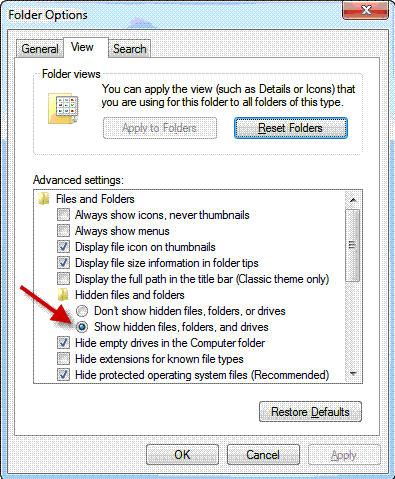
To view files, folders, and drives that Windows hides, open the Windows search box (Windows Logo) and type folder. Next, select Folder Options from the search list and navigate to the View tab. Under Hidden files and folders, check the box next to "Show hidden files, folders, and drives
7. Rename multiples files
To rename multiple files in Windows, highlight the files you want to rename, then hit the F2 key. Rename the first file, then hit Enter. All your files will be renamed and a number in parenthesis will be added to the end of the name. If you change your mind, you can hit Ctrl+Z to undo the rename

That's it. If you know of any other cool Windows tips and tricks, feel free to share them in the comments


Wednesday, 21 December 2011

Internet Connection Sharing on Windows XP

This trick shows you how to share your internet connections on multiple computers within a workgroup with Windows XP. Windows XP has a built-in feature that called "Internet Connection Sharing" (ICS) that allows home users to share their internet connections on multiple computers.
If you are not familiar with the network configurations, the easiest way to share your internet connection is to purchase a router or hub. Use this trick only if you don't have a router, or don't want to use a router, or if you just want to try out the feature.

A simple way to understand this feature is, you are making your host computer (the computer directly connects to the internet) functioning as a router for other computers.

What do you need?

    A "Host" computer that running Windows XP. This computer must have at least TWO (2) network adapters. One adapter - let's call it "Adapter #1" - connects to the internet and another, "Adapter #2", connects to a hub or directly to other computers.
    Client computer(s), which run any version of Windows. A client computer can be connected to the host computer directly by a cross-over cable or indirectly through a hub.
    This trick assumes that the host computer is connected to the internet and you are able to access the internet on this computer.


Configure the Host Computer
    Logon the host computer as Administrator.
    Click Start >> Control Panel.
    Click Network and Internet Connections.
    Click Network Connections.
    Right-click the connection that you use to connect to the internet (the connection with Adapter #1). This connection can be either a high-speed internet connection or a dial-up connection.
    Click Properties.
    Click Advanced tab.
    Under Internet Connection Sharing, select the Allow other network users to connect through this computer's Internet connection check box.
    If you are sharing a dial-up Internet connection, select the Establish a dial-up connection whenever a computer on my network attempts to access the Internet check box if you want to permit your computer to automatically connect to the Internet.
    Click OK. You'll reieve the following message:
    When Internet Connection Sharing is enabled, your LAN adapter will be set to use IP address 192.168.0.1. Your computer may lose connectivity with other computers on your network. If these other computers have static IP addresses, it is a good idea to set them to obtain their IP addresses automatically. Are you sure you want to enable Internet Connection Sharing?
    Click Yes.

Configure the Client Computer(s)

To use the shared connection from the Host computer, a client computer must be configured with "Automatic IP address". The main configurations are:

    Configure TCP/IP Automatic IP
    Configure Internet Connection

The steps for the above two configurations are vary on different versions of Windows.
The following procedures are for Windows XP client computers.

    Log on to the client computer as Administrator or as Owner.
    Click Start >> Control Panel.
    Click Network and Internet Connections.
    Click Network Connections.
    Right-click Local Area Connection, and then click Properties.
    Click the General tab, click Internet Protocol (TCP/IP) in the This connection uses the following items list, and then click Properties.
    In the Internet Protocol (TCP/IP) Properties dialog box, click Obtain an IP address automatically (if it is not already selected), and then click OK.


    Click Start >> Control Panel
    Click Network and Internet Connections.
    Click Internet Options.
    In the Internet Properties dialog box, click the Connections tab.
    Click the Setup button. The New Connection Wizard starts.
    On the Welcome to the New Connection Wizard page, click Next.
    Click Connect to the Internet, and then click Next.
    Click Set up my connection manually, and then click Next.
    Click Connect using a broadband connection that is always on, and then click Next.
    On the Completing the New Connection Wizard page, click Finish.
    Exit Control Panel and test the internet. You might need to restart the computer.

Wednesday, 14 December 2011

Track changes in Microsoft Word 2010

How to accept Track changes in Microsoft Word 2010?

"Track changes" is wonderful and remarkable tool of Microsoft Word 2010. The feature allows editing your documents without making the changes permanent. It means if you have deleted a word, Track back highlights it, though the word is deleted but until final changes are accepted, it remains there.
A track change is very helpful when you are working on draft that needs extra care. For Example you are working your project and you are not sure whether changes you made are right and you want to take your professors/superiors opinion.

Today the world has become global village, now virtual teams sitting in different parts of world are working on same projects. They need to communicate, they suggest prose and finalize things, track changes help them to make changes or send suggestions to other members.
One can delete, add, comment or make formatting changes by using it.
Instructions
1- Open desired word document you wish to apply track changes.

2.      2- Go to Review Tab, under "Tracking" Group, click on track changes. It will change to orange colour, that means feature has "turned on" 

     
3.       Take the cursor to where you want to save changes and type, you will see colour of the text will different. It means that changes you are making are not permanent.  
     
4.       Go to "Tracking Group" and click on "Show Markup", choose "Balloons" and Click on your desired settings how you want to show your changes. Either you want to show your changes/Revisions in Balloons, with in your document or show only comments and Formatting in Balloons. 
     
5.       Go to "Comments" Group, under Review tab, click "New comment" where you want to insert a comment, leave a note or ask question.  
     
6.       Go to the Review Group, click on the Reviewing pane and choose either vertical or horizontal settings to carefully go through your document. OR go through them one by one by choosing "Next" or "Previous" from "Changes" Group.
       
7.       Click on "Accept or Reject" from "Changes Group" to tell programme whether you want to keep or permanently delete a change.  
     
Go to the "File Menu" and "Save" all changes that you made in your document.

Locking the Computer Screen in Windows 7

How to create a shortcut for locking the Computer Screen in Windows 7?
There are many ways in which you can lock the computer screen. The most popular as well as the fastest way to lock it is to use a keyboard shortcut. The keyboard shortcut used to lock the computer screen is Win+L. A few of us choose to utilize the mouse to lock it. And of course many people like to use both the options.


There is another method in which we can lock the computer screen. It is to create a shortcut for locking the computer screen in Windows 7. You can create a shortcut for locking the computer screen in Windows 7, XP and Vista too. Follow these steps in order to create a shortcut for locking the computer screen in Windows 7 as well as other editions:
Right-click on the desktop where you would like to create the shortcut.
Point to New.

Click on Shortcut from the menu.

Type in this text in the shortcut textbox. (This text will work for Windows XP as well even though the screen will be different)
rundll32.exe user32.dll, LockWorkStation

Click on the Next button.
Type in a name for your shortcut.
Click on the Finish button.  
You have successfully created a shortcut to lock your workstation. Just click on the shortcut whenever you want to lock the computer screen.

Friday, 9 December 2011

Improve Windows XP Shutdown Speed

This tweak reduces the time XP waits before automatically closing any running programs when you give it the command to shutdown.

Go to Start then select Run
Type 'Regedit' and click ok
Find 'HKEY_CURRENT_USER\Control Panel\Desktop\'
Select 'WaitToKillAppTimeout'
Right click and select 'Modify'
Change the value to '1000'
Click 'OK'
Now select 'HungAppTimeout'
Right click and select 'Modify'
Change the value to '1000'
Click 'OK'
 
Now find 'HKEY_USERS\.DEFAULT\Control Panel\Desktop'
Select 'WaitToKillAppTimeout'
Right click and select 'Modify'
Change the value to '1000'
Click 'OK'
Now find 'HKEY_LOCAL_MACHINE\System\CurrentControlSet\Control\'
Select 'WaitToKillServiceTimeout'
Right click and select 'Modify'
Change the value to '1000'
Click 'OK'

How to Access Hidden Themes in Windows 7?

Windows 7 offers a good assortment of themes to customize the feel as well as the look of your computer. Windows 7 features particular themes which are based on the location and the language you select while you install the Windows 7. You can look for the location-specific theme in the Personalize menu. You just have to right-click at any place upon your computer desktop. You will be able to get the couple of themes according to your location.


Other than the location specific themes which you get by default, you can access hidden themes in Windows 7 which are offered to other regions. So the default themes which you get according to your region are not the only themes you can use. It is possible to access hidden themes in Windows 7 very easily in your system. This is what you have to do:
 Click Start.
In the search box of the Start menu, type C:\Windows\Globalization\MCT.

Your Windows Explorer will show you a window with additional themes. These will be from Great Britain, South Africa, Australia and Canada.

You have the option to select the wallpaper only or you can install the whole theme if you want.

You will be able to install the entire brand-new theme by double clicking on the required file.

The new theme you add will show under “My Themes” within the “Personalization” pane.

You can also download many themes for Windows 7 from different website including the Microsoft official website. But you should first try to customize and access hidden themes in Windows 7 as you might not feel the need to download additional themes from elsewhere after that.. 


How to enable or disable the windows firewall in windows 7?

A firewall is a software or hardware base solution to filter the incoming and outgoing traffic of your computer or network. All the entering or leaving traffic from your computer pass through the firewall, which inspect the all types of traffic and either allow or deny the traffic depending upon the firewall settings. Microsoft includes the built-in firewall feature in all latest windows operating systems like windows XP, Vista and now in windows 7.
Follow the given steps to configure built-in firewall in windows 7:
To use this feature, you will need to be logged into your computer with administrative rights.
First click on Start button and then click on Control Panel option.
Now in Control Panel click on “System and Security” link to go next.
On next page, you can see the firewall link “Windows Firewall”, Click on this link to configure the firewall.
There are many options on the left side panel of this page regarding firewall configurations under “Allow a program or feature through Windows Firewall”, For example
  • Change notification settings
  • Turn Windows Firewall on or off
  • Restore defaults
  • Advanced settings

On the right side panel, you can see the two types of link for firewall settings, For example
  • Home or Work (Private) networks
  • Public networks
Now in left side panel, click on Change notification settings to customize the firewall settings.

By default windows firewall is on for both private and public network, here you can turn off the default firewall policies.

To allow the default or recommended settings either click on the Use recommended settings button on the right pane or click on the Restore default link on the left side panel.
Here click on the Restore default button and a restore defaults confirmation message will be opened, Click on Yes button.
But if you are a expert user then you can use the Advance Settings link on left side panel to configure the advance firewall settings for inbound and outbound traffic according to your need.
Click on the Inbound Rules link in the left side panel. You can see here a list of all Inbound Rules is displayed. On clicking an enabled rule, a list of actions is shown in the Actions Pane. Click on Disable Rule to disable the selected rule. You can also Cut, Copy and Delete the rule.
Same here Outbound Rules for outgoing traffic.

Share

Twitter Delicious Facebook Digg Stumbleupon Favorites More